




This guide is part of the G1 phone series
1.
How to change the screen orientation on a G1
2. How to download music to g1 phone
3. How to install google mobile apps by text message
4. How to Install the Comcast Xfinity Android App
5. How to open android market on a g1
6. How to send email from a g1
7. How to sync a g1 with a pc
8. How to take pictures on g1 a phone
9. How to use a g1 phone
10. How to use Google Calendar Sync with the g1
2. How to download music to g1 phone
3. How to install google mobile apps by text message
4. How to Install the Comcast Xfinity Android App
5. How to open android market on a g1
6. How to send email from a g1
7. How to sync a g1 with a pc
8. How to take pictures on g1 a phone
9. How to use a g1 phone
10. How to use Google Calendar Sync with the g1
Make: Google
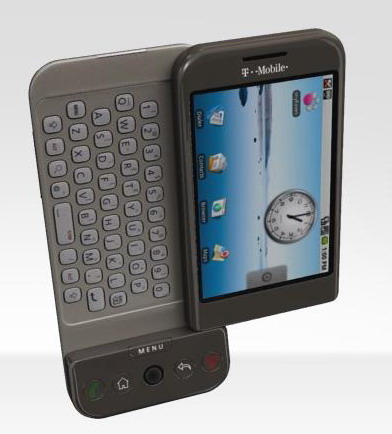
Model / Product: T-Mobile g1
Version: 1.5
Objective / Info: Sync the g1 phone with a pc using usb.
Model / Product: T-Mobile g1
Version: 1.5
Objective / Info: Sync the g1 phone with a pc using usb.
1
Connect the g1 to a usb port on your computer using the usb cable provide with the phone.2
You should see a usb symbol on the phones main screen near the upper left hand corner.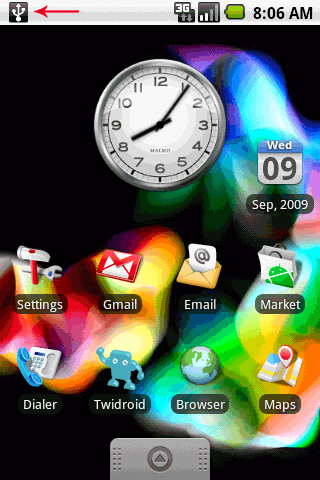
3
Slide down the notifications bar.4
Select the “USB Connected”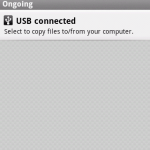
5
Select the mount option. At this time the computer may prompt you that a new connection has been found at which time you should select to Open the files / folder OR close the window.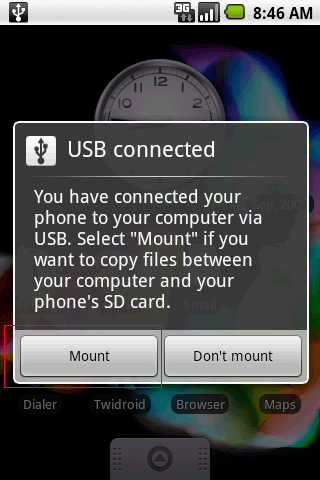
6
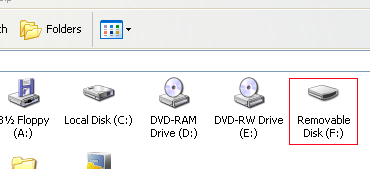
At this time the computer should display a new removable drive with a drive letter in the My Computer section.
7
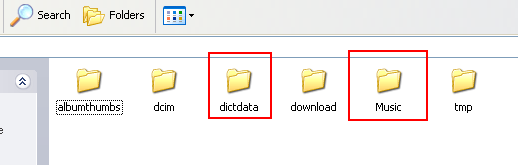
Open the new drive and you will find the files and folders on the phone.8
Select the folder you need. Note: The “Music” for music, “dcim”/”Camera” for photos and videos.

comments powered by Disqus
 Ask a question or provide an answer